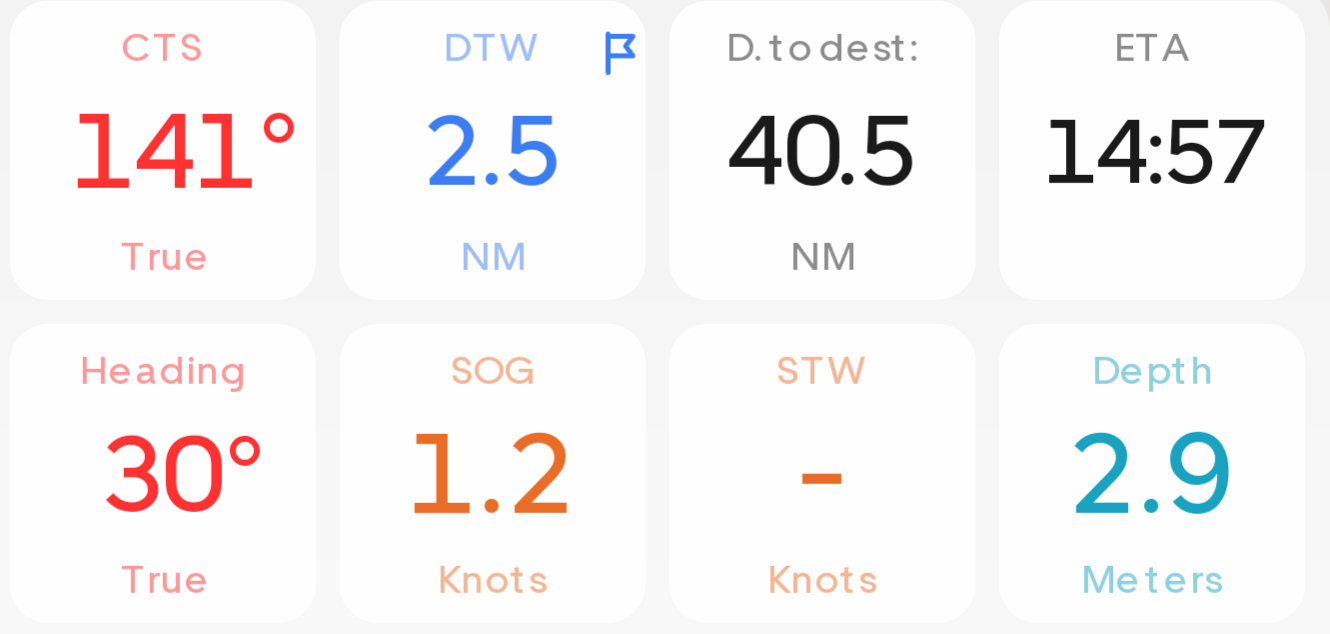
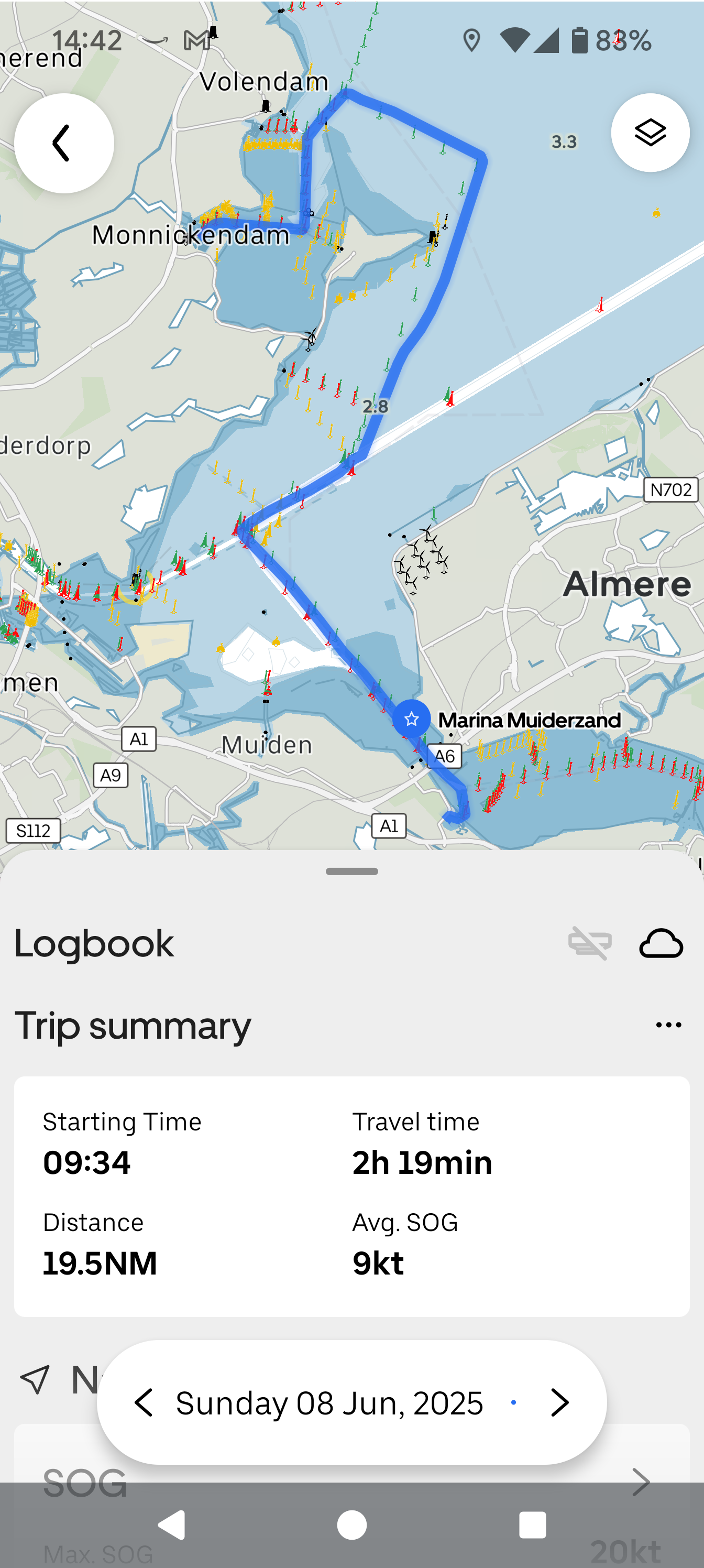
| Part 5: Reflections and Opinion When you setup the system, the first thing that the Orca software wants to do is to calibrate the compass. Everything still works before you do this, but it's probably better to use the feed from the original fluxgate compass until you have done so. The calibration process is very simple and appears to be less fussy than my old fluxgate compass setup on the ST6001 controller. As is common to these devices, you just have to have to steer in a circle at a turn rate of about 3 degrees per second. It's easier to think of this as a 360 degree turn in two minutes +. Having completed this stage, you use buttons on the display to set the magnetic reading so that it agrees with your traditional ship compass. One nice thing about the Orca software is that it's easy to repeat this last stage if needed, without the full recalibration. The Connections page makes it very easy to see and change the data source that the system uses for navigation. Once the compass calibration is completed, you can select the Orca Core, or the legacy fluxgate compass, as the source that will be used. All devices connected via the Raymarine E22158 adapter are just referred to as "E22158" Route Creation Before creating a route, it's necessary to setup the parameters relating to your boat, such as its name, type, and dimensions. It's also worth looking at the Routing Settings which include your cruising speeds, height limit, and depth limit. There's also a parameter called Routing Leeway which describes the distance you prefer to keep away from shore. This is set quite low initially; more suitable for small boats. To set a route, you press on the required destination on the map, or search for it by pressing the Explore option at the bottom of the screen. There are shortcuts for Marinas and Anchorages that bring up a list of these locations nearest to you. If you type in the Search box, the search will include any matching waypoints you have created along with places from the map database. When you've made your selection, press the blue Navigate To button and select the Starting Location. By default, the Route Type will be "Engine", ie. calculated by Orca automatically, but you can change this to "Manual". When you do this, you effectively set a single waypoint in a direct line from your starting location. Click Edit Waypoints and then you can insert additional intermediate waypoints by pressing and sliding/dragging on the current route line. If you want to add another waypoint after the destination, just press and hold the required point away from the route line. It's a little tricky at first, but soon becomes very intuitive. You can also add intermediate waypoints to a route that Orca creates, but if you try to do this in an area with shallow water where Orca has plotted a course to maximise the depth, the Engine option will persist in avoiding the shallow areas. So if you need to cross a shallow area, it's better to use the Manual option or split the route into two separate ones. Instruments I found it useful to add a couple of panels to the instruments; in particular, Course to Steer (CTS), Distance to Waypoint (DTW) etc. I also like to be able to see the Speed Through Water (STW). Here's my setup: To edit the instrument panel, you just press and hold an instrument. This gives you a pop-up menu where you can select: - Edit Instrument
- Edit Instrument Panel
- Remove Instrument
When you edit an instrument, you have the option to rename it, or change its colour. Some of the instruments have a choice of sizes, but currently you have to delete the instrument and re-add it if you want to change the display size. Editing the Instrument Panel allows you to add, delete, or change the order of the instruments - it's all very intuitive. However, one thing that could be improved is that when you set the order of instruments in one orientation, it affects the layout in the other. This is an obvious improvement suggestion. Following a Route Following a route manually relies mainly on the map. There isn't currently a way of displaying a "Rolling Road" style course. TBH I never really used this as my boat has a autopilot, but I have friends that would see this as a serious omission. Hopefully, Orca will add this in the future. Nevertheless, following the thick blue line is pretty easy. I recently travelled from Great Yarmouth UK to IJmuiden NL with the NYA cruising club, following a preset manual route, and we stuck fairly close to the line. There would be no great issue using it in this manner. Autopilot Routing Once a route is active, using the Autopilot is just a case of selecting "Nav" in the Autopilot control. Pressing "Engage" activates it. Initially it disengaged shortly after I pressed it, but a bit of experimentation showed that you have to be reasonably close to the desired track or approaching the next waypoint for it to engage properly. When you approach the next waypoint, an "Approve" button pops up if the turn is sharper than 30°. You can pre-approve up to 15min ahead of arrival at the waypoint. Unlike my Raymarine e95 on my previous boat, turns less than 30° don't require approval. I was waiting in anticipation for the first one of these, expecting a dramatic turn, but in reality, it's a really gentle change of course; very smooth! I like this a lot and plan to rework some of my existing routes so that there are additional turns to keep them all below about 25°. It's a very cool feature. On my recent trip to the Netherlands, I let the boat steer itself for the last 1/3 of the journey. It tracked very close to the preplanned route and executed turns on its own without incident. Logbook The Orca system keeps track of all your trips using its built-in Logbook. I must admit that I initially overlooked this feature, but I really like the way it's been implemented. The logbook records: - Speed Over Ground (Max and Average), Navigation Time, Stationary Time
- Speed Through Water (Max and Average)
- Wind (Max and Average), Direction and sigma
- Current (Max and Average), Average Direction
- Battery Voltage (Start of Trip, End of Trip, Minimum)
It looks like there are additional fields that will be recorded if your NMEA 2000 system supports it, eg. fuel usage. Overall, it's very easy and intuitive to use. Part 5: Reflections and Opinion |  Kevin Millican